
Two-Sided Copying
You can copy two original pages onto the both sides of a single sheet of paper.
Select Settings in the copy standby screen to display the print setting screen. Select 2-sidedPrintSetting in the 2-sided and select OK.
In addition, when you select Duplex for ADF duplex scan, you can perform duplex scanning.
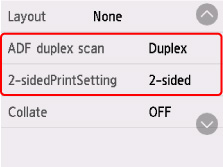
Specify the place to load originals or copy settings according to the two-sided copying method.
Single-sided to Two-sided
Place to load the original: platen or ADF (Auto Document Feeder)
ADF duplex scan: Simplex
2-sidedPrintSetting: 2-sided
When you select Advanced after selecting 2-sided for 2-sidedPrintSetting, you can select the orientation and the stapling side of the paper. Also, you can select whether to display the preview screen when you load the original on the platen.
-
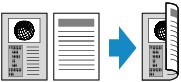
When you select Orientation: Portrait and Output: Long-side stapling:
-
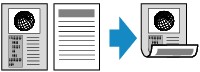
When you select Orientation: Portrait and Output: Short-side stapling:
-
When you select Orientation: Landscape and Output: Long-side stapling:

-
When you select Orientation: Landscape and Output: Short-side stapling:

Two-sided to Single-sided
Place to load the original: ADF
ADF duplex scan: Duplex
2-sidedPrintSetting: 1-sided
When you select Advanced after selecting Duplex for ADF duplex scan, you can select the orientation and the stapling side of the original.
-
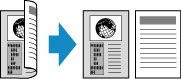
When you select Orientation: Portrait and Original: Long-side stapling:
-
When you select Orientation: Portrait and Original: Short-side stapling:

-
When you select Orientation: Landscape and Original: Long-side stapling:

-
When you select Orientation: Landscape and Original: Short-side stapling:

Two-sided to Two-sided
Place to load the original: ADF
ADF duplex scan: Duplex
2-sidedPrintSetting: 2-sided
When you select Duplex for ADF duplex scan and select Advanced, you can select the orientation and the stapling side of the original. When you select 2-sided for 2-sidedPrintSetting and select Advanced, you can select the orientation and the stapling side of the paper.
After selecting the stapling side, you can select whether you use the preview screen. If you select ON, the preview screen is displayed so that you can check the orientation.
-
When you select Orientation: Portrait for the orientation and Original: Long-side stapling and Output: Long-side stapling for the stapling side:
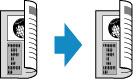
-
When you select Orientation: Portrait for the orientation and Original: Short-side stapling and Output: Short-side stapling for the stapling side:

-
When you select Orientation: Landscape for the orientation and Original: Long-side stapling and Output: Long-side stapling for the stapling side:
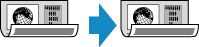
-
When you select Orientation: Landscape for the orientation and Original: Short-side stapling and Output: Short-side stapling for the stapling side:

When the stapling sides specified for Duplex and 2-sided are different, the originals are copied so that the page is flipped vertically.
Ex: When you select Orientation: Landscape, Original: Long-side stapling, and Output: Short-side stapling:

When Loading the Original on the platen:
-
Before scanning:
When you select 2-sided for 2-sidedPrintSetting and the preview function is activated, the printer starts pre-scanning before scanning the original. When pre-scanning is finished, the preview screen appears on the touch screen.
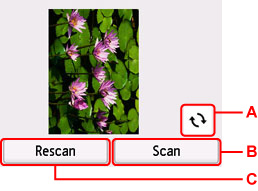
-
A: Select to rotate the original by 180 degrees.
-
B: Select to start scanning the original.
-
C: Select to rescan the original.
-
-
After scanning:
The confirmation screen appears after scanning each sheet of original.
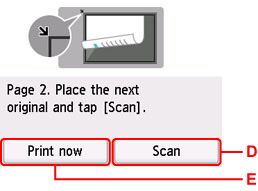
-
D: Select to start scanning the original.
Remove the sheet of original from the platen after scanning and load the next sheet on the platen and select Scan.
-
E: Select to start copying the original already scanned.
 Note
Note-
You can add the copying job while printing.
-
